
Backups And Updates Explained: The 5-Step Formula to Protect Your Business Website
Estimated reading time: 8–10 minutes
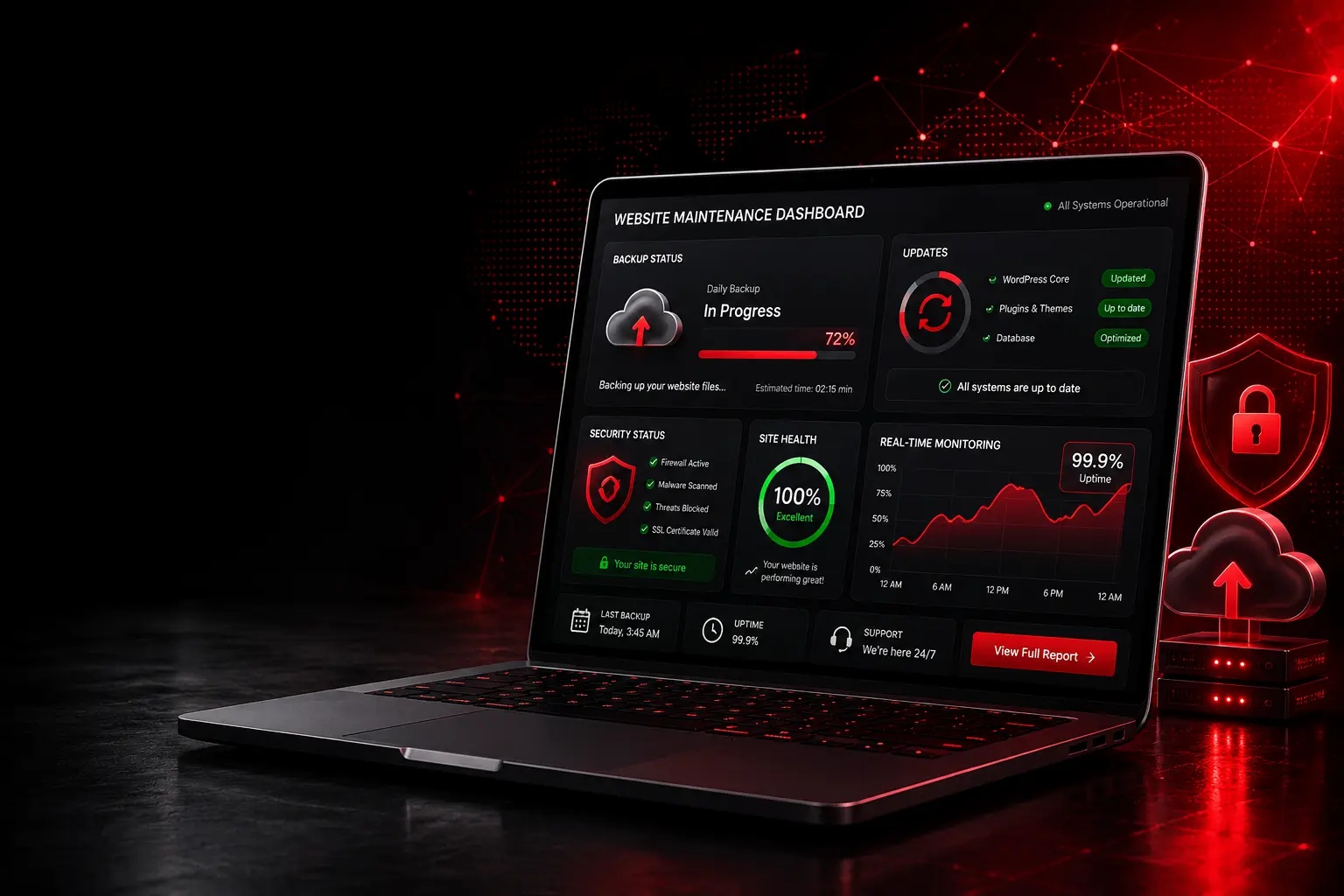
If you own a WordPress or custom-built website, you've probably heard the terms "backup" and "update" thrown around by developers, hosting providers, and agencies, usually right before they try to sell you a maintenance plan. But what do these terms actually mean, why do they matter for a small business, and is paying for ongoing maintenance really worth it?
This guide breaks it down in plain English. No jargon, no scare tactics, just a clear, practical framework you can use to protect your website whether you handle it yourself or hand it off to a professional.
At a Glance
- Distinct Functions: Backups protect your core data and files like a safety net, while updates act as preventative medicine by patching software vulnerabilities.
- Automation Wins: Manual maintenance leaves too much room for human error. Implementing automated, off-site solutions keeps your site protected around the clock.
- Real Business Risk: Outdated software is the primary target for automated cyber attacks. Skipping updates can lead to severe downtime, lost revenue, and damaged local market trust.
- Test Your Safety Net: A backup is only valuable if it can be successfully restored. Regular restoration testing in a safe staging environment is essential.
What Are Website Backups and Updates? (The Quick Answer)
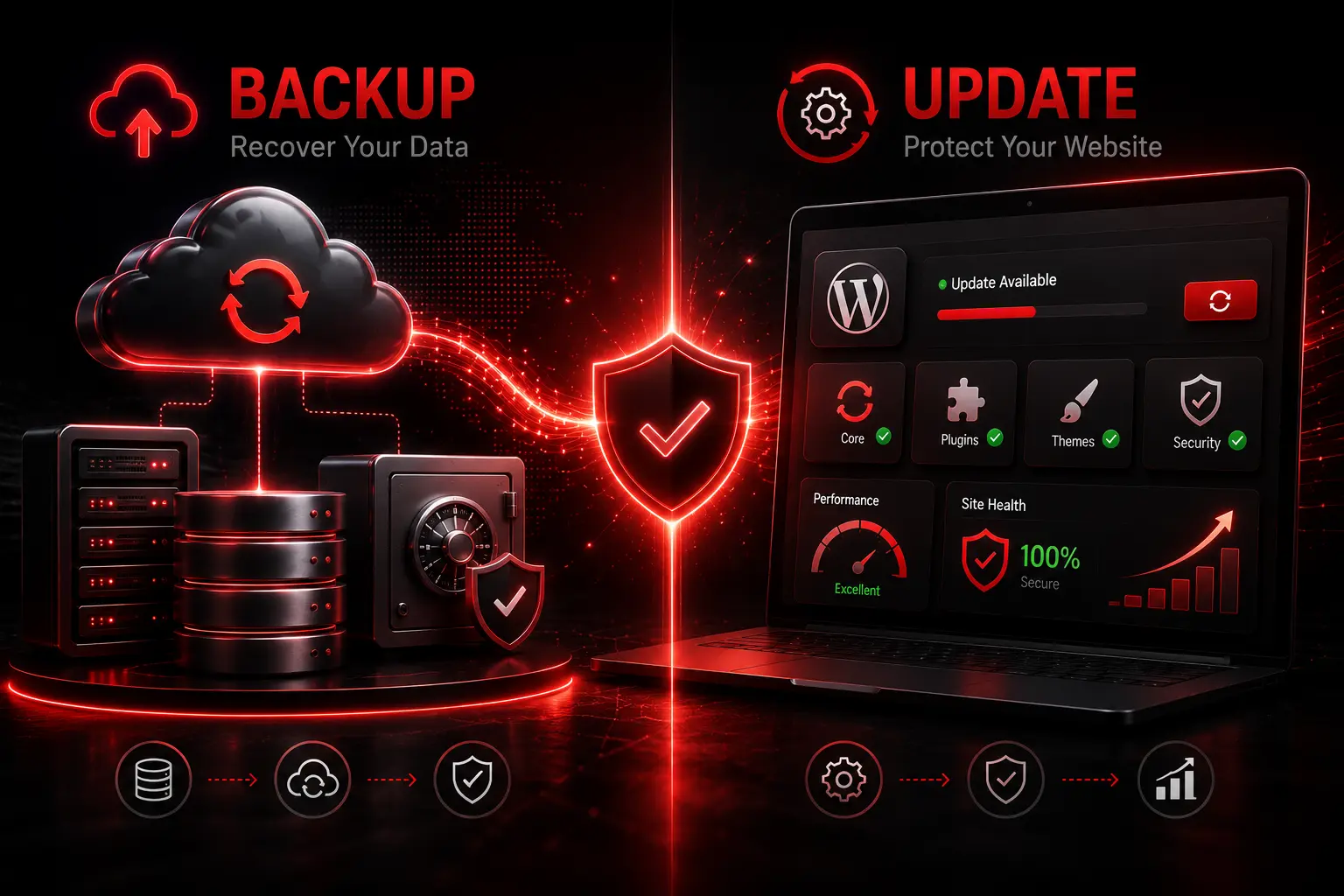
Website backups are saved copies of your site's files and database used to restore operations after a disaster. Website updates are software patches that install the newest versions of your core system, themes, and plugins to fix bugs and secure vulnerabilities. In short: backups protect your data, while updates protect your software.
Is your Ottawa business site actually protected right now? Don’t wait for a crash to find out your safety net is broken. Get a fast, no-obligation technical assessment from our local team.
Backups vs. Updates: What's the Difference?
It's common for business owners to assume these two terms mean roughly the same thing. They don't, and confusing them is one of the fastest ways to end up unprotected.
What a Backup Actually Saves
A proper backup captures two things: your file system (images, themes, plugins, uploaded documents) and your database (blog posts, product listings, customer form submissions, page content). If your site is hacked, your hosting server crashes, or you accidentally delete a page, a backup lets you roll back to a working version, often within minutes.
What an Update Actually Changes
An update modifies the software running your site: WordPress core, plugins, themes, or server-level software like PHP. Updates typically include security patches, bug fixes, new features, and compatibility improvements. Skipping them doesn't just mean missing new features; it means running software with publicly known vulnerabilities.
The latest security fixes are published through WordPress Security Releases, making it important to keep your website updated.
Key insight: A backup is a safety net. An update is preventative medicine. You need both, because one recovers you from disaster and the other reduces the odds of disaster happening at all.
Why Are Backups and Updates Important for Small Business Websites?
For a small business, a website isn't just a brochure; it's often the primary channel for leads, bookings, and sales. The importance of backups and updates comes down to one simple fact: your website is a living system that changes daily, and every piece of software behind it is a potential entry point for attackers or a potential point of failure.
A secure website starts with reliable hosting. Learn what to look for in our Reliable Web Hosting in Canada: A 2026 Buyer's Checklist.
The Role of Backups in Business Continuity
Think of a backup the same way you'd think of business insurance. You hope you never need it, but the businesses that have it recover in hours. The businesses that don't can lose days, weeks, or, in the worst cases, their entire website history permanently.
The Role of Updates in Site Security and Performance
WordPress alone powers over 41% of all websites on the internet, making its core software and third-party plugins a massive target for automated bot attacks scanning for unpatched software. An unpatched plugin isn't a minor inconvenience; it's an open door. Updates close that door before it's found.
Organizations such as OWASP Web Security Project recommend keeping website software updated as one of the most effective ways to reduce common security risks.
How Often Should I Back Up and Update My Website?
Most small business websites should be backed up daily and checked for updates at least weekly.
The right frequency depends on how often your site changes and how critical uptime is to your revenue.
Recommended Backup Frequency by Site Type
- Static/brochure sites (rarely changed): Weekly backups are usually sufficient.
- Business sites with a blog or regular content updates: Daily backups are recommended.
- E-commerce or booking sites with transactions: Real-time or multiple-times-daily backups, since losing even a few hours of orders or bookings is costly.
Recommended Update Frequency (Core, Plugins, Themes)
- Security patches: Applied as soon as released, often within 24 to 48 hours.
- Plugin and theme updates: Reviewed and applied weekly, after compatibility checks.
- Core software major versions: Tested in a staging environment before being pushed live, typically within a few weeks of release.
Free Website Audit: Find Your Security Gaps Not sure if your plugins are safe or if your backups are running off-site? We’ll run a quick diagnostic on your site and tell you exactly where you're vulnerable.
What Happens If I Skip Backups and Updates? (Real Risk Scenarios)
This is where the abstract becomes concrete. In our experience managing local Ottawa and Gatineau business websites, the cost of skipping maintenance almost never shows up as a small inconvenience; it shows up as a business emergency.
Case Study: When a Missed Update Cost a Client Their Site
We once took on a client who came to us after their previous site had gone untouched for over a year. A widely used plugin had a known vulnerability that was patched months earlier, but because updates weren't being applied, the outdated version was still live. The site was compromised, flagged by Google for malicious content, and dropped from search rankings almost overnight. Because there was no recent backup either, restoring the site meant rebuilding significant portions of it from scratch, at far greater cost and far more lost time than routine maintenance would have ever required.
Done playing Russian Roulette with WordPress updates? One unpatched plugin can wipe out your local search rankings and customer trust overnight. Let Le Studio handle your daily maintenance proactively.
The Hidden Costs of Downtime, Data Loss, and Security Breaches
Financial Impact
Every hour a business website is down or flagged as unsafe is an hour of lost leads, lost bookings, and lost sales, plus the direct cost of emergency recovery, which is almost always more expensive than preventative maintenance.
Reputational Impact (Local Ottawa/Gatineau Market Trust)
In tight-knit local markets like Kanata, Orléans, Nepean, and Gatineau, word travels fast. A hacked website, a broken contact form, or a "this site may be compromised" warning in Google search results does lasting damage to trust that isn't easily undone with a quick fix.
Warning: The real cost of a website disaster is rarely just the technical fix. It's the compounding damage that happens while your site is down or compromised.
A hacked or unreliable website can result in lost customer trust, reduced conversions, and lower search visibility over time. Google's SEO Starter Guide recommends following best practices to build secure, search-friendly websites that provide a better experience for both users and search engines.
How to Backup Website Data and Apply Updates: 5 Simple Steps

Here is the exact framework we recommend to business owners who want to understand, or manage, their own maintenance routine.
Step 1: Choose Your Backup Method (Manual vs. Automated)
Decide whether you'll export backups manually through your host's control panel, or use an automated plugin/service that runs on a schedule without requiring you to remember. For any active business site, automation is strongly recommended.
Step 2: Schedule Recurring Backups
Set your backup frequency based on how often your content changes (see the frequency guidance above), and, critically, store copies off-site, not just on the same server as your live website.
Step 3: Test Your Backup Restoration
A backup you've never tested is a backup you can't trust. Periodically restore a copy to a staging environment to confirm the files and database are actually recoverable.
Step 4: Update Core Software, Themes, and Plugins
Apply updates in a logical order (core software first, then themes, then plugins) and always take a fresh backup immediately beforehand, in case an update introduces a conflict.
Step 5: Monitor and Log Every Change
Keep a simple log of what was updated and when. If something breaks after an update, this log tells you exactly where to look first, dramatically reducing troubleshooting time.
Manual vs. Automated Backup and Update Tools: Which Is Right for You?
This is one of the most common questions we hear from business owners trying to decide how hands-on to be with their own maintenance.
Comparison Table: DIY Tools vs. Managed Maintenance Plans
| Factor | Manual / DIY Tools | Automated Plugins | Managed Maintenance Plan |
|---|---|---|---|
| Time required | High (hours/month) | Low, but needs oversight | None, fully handled |
| Off-site storage | Rarely, unless configured manually | Sometimes, depends on plugin | Always included |
| Restoration testing | Rarely done | Rarely done | Performed regularly |
| Update conflict monitoring | Manual, after the fact | Limited/none | Proactive, before issues occur |
| Security patch response time | Depends on owner's availability | Delayed until manually checked | Same-day to 48-hour response |
| Best suited for | Very small, low-traffic sites | Budget-conscious owners with time to monitor | Active business sites where downtime = lost revenue |
Checklist: Is Your Current Setup Actually Protecting You?
- Backups run automatically, not just when you remember
- Backup copies are stored off-site, not solely on your live server
- You've restored a backup at least once to confirm it works
- Plugins, themes, and core software are all on their latest versions
- Security patches are applied within 48 hours of release
- Someone is actively monitoring for update conflicts, not just installing and hoping
Want to build a complete maintenance routine? Read our guide on What Is Website Maintenance? to learn the essential tasks every business website needs.
Do I Really Need a Professional to Manage My Backups and Updates?
Not always, but for most active business websites, professional management removes risk that DIY tools simply weren't built to catch.
When DIY Maintenance Makes Sense
If your site is a simple, low-traffic page with minimal updates, a well-configured automated plugin and a monthly check-in may be entirely sufficient.
When It's Time to Hand It Off to Experts
If your site handles bookings, sales, customer data, or is central to how customers find and trust your business, the margin for error narrows considerably. This is where a managed plan, where backups, updates, monitoring, and conflict resolution are handled proactively by people who do it daily, earns its cost back many times over in avoided downtime alone.
Let Le Studio Handle Your Backups and Updates for You
Understanding backups and updates is the first step. Actually managing them consistently is where most business owners run out of time. Learn more about our Website Hosting and Maintenance Services to keep your website secure, updated, and running at peak performance.
What's Included in Our Hosting and Maintenance Plans
At Le Studio WebDesign, our Website Hosting and Maintenance plans include automated off-site backups, tested restoration processes, proactive core/plugin/theme updates, and ongoing monitoring. This ensures technical issues are caught and resolved before they ever reach your visitors.
Serving Ottawa, Kanata, Orléans, and Gatineau Businesses Bilingually
We work with local businesses across Ottawa, Kanata, Orléans, Nepean, and Gatineau in both English and French. Our approach combines friendly, hands-on local support with the technical rigor of a dedicated website maintenance team.
Protect Your Website. Secure Your Business. Managing updates and plugin conflicts takes hours away from your business. Le Studio provides fully managed, bilingual web hosting and maintenance across Ottawa and Gatineau. We stop technical issues before they reach your clients.
No obligation. Just clear, honest advice for your local business.
Frequently Asked Questions About Backups and Updates
What is the difference between a backup and an update?
A backup is a saved copy of your website's files and data used for recovery. An update installs the newest, more secure version of your website's software. One restores you after a problem; the other helps prevent the problem in the first place.
How long does a website backup take?
This depends on site size, but most small business websites can be fully backed up in a few minutes to under an hour using automated tools, with little to no impact on site performance.
Can I restore my website myself if something goes wrong?
Yes, if you have a tested, off-site backup and access to your hosting control panel. Without a tested backup, self-restoration usually isn't possible, which is why testing restorations matters as much as creating them.
What's the difference between automated and manual backups?
Automated backups run on a set schedule without requiring you to remember, while manual backups require you to actively export and store a copy yourself. Automated backups are strongly recommended for any actively used business website.
Do WordPress updates ever break my website?
Occasionally, yes, usually due to a plugin or theme conflict with a new core version. This is exactly why taking a fresh backup before every update, and testing changes in a staging environment, is standard best practice.